How to Use Shopify’s Built-In Tools to Improve Mobile Conversions

Mobile has taken the leadership of e-commerce, with smartphones and tablets responsible for more than 73% of sales online in 2025 (Statista). Still, it is a major challenge for many Shopify traders. Whether you run a new store, scales rapidly growing DTC brand or customizing client performance as CRO consultant, mobile conversion intervals are common. High cart abandonment, limited product discovery, and checkout friction are key reasons mobile shoppers bounce before buying.
Shopify provides a built-in conversion optimization tools produced to solve these accurate problems- no third-party app or extra cost. In this guide we will make you run through 10 underlying features that are proven to move the needle. If you want to get more than your mobile traffic, then where to start it.
10 Built-In Shopify Tools That Boost Mobile Conversions
1. Dynamic Checkout Buttons
Dynamic checkout buttons are one-click “Buy Now” options that appear directly on product pages, allowing customers to instantly initiate checkout using their preferred payment method, such as Apple Pay, Google Pay, or Shop Pay, without needing to visit the cart page.
Mobile shoppers have limited patience. Every tap, scroll, or page load introduces friction. Dynamic checkout buttons solve the need for speed, especially on mobile, where thumb-friendly, immediate CTAs significantly improve the buyer journey. By letting customers bypass the cart and jump straight to checkout with a trusted payment option, you reduce abandonment and capitalize on impulse purchases.
How to Enable:
- Go to Online Store > Themes and click Customize next to your current theme.
- Navigate to a Product Page layout.
- Locate the Buy Buttons section.
- Check the box to “Show dynamic checkout button.”
- Save your changes.
How to Use It Strategically:
- Above-the-fold placement is crucial: mobile users won’t scroll far to find the CTA.
- Pair the button with trust-building elements like secure checkout icons or payment method logos.
- Consider A/B testing its position (e.g., above vs. below product description) and monitoring conversion impact through Shopify analytics or heatmaps.
2. Shop Pay
Shop Pay is Shopify’s built-in accelerated checkout feature that allows returning customers to purchase in one-tap. It securely stores shipping, billing, and payment details across all Shopify stores, allowing customers to breeze through checkout without re-entering information every time.
Speed is the currency of mobile commerce. According to Shopify’s internal data, Shop Pay boosts mobile checkout conversion rates by up to 50% compared to guest checkout. It reduces cognitive load, eliminates friction, and builds trust with returning customers. Shop Pay also supports split payments (installments) in some regions, which can further improve conversion rates and Average Order Value (AOV).
How to Enable:
- Go to Settings > Payments in your Shopify admin.
- Under Shopify Payments, click Manage.
- Scroll to Accelerated Checkouts.
- Enable Shop Pay and Shop Pay Installments if applicable.
- Save your changes.
How to Use It Strategically:
- Feature Shop Pay icons and text like “Fast Checkout with Shop Pay” near Add to Cart buttons to signal speed and security.
- Use Shop Pay Installments for higher-ticket products, breakdown pricing improves affordability and reduces bounce.
- Add trust-building copy like “Trusted by millions” or “Secure 1-tap checkout” for mobile reassurance.
3. Product Recommendations
Shopify’s built-in recommendation engine uses machine learning to automatically display related or frequently bought-together items. These appear on product pages, cart pages, or the home page depending on theme setup. It updates dynamically based on your catalog and customer browsing patterns.
Personalized discovery is critical on mobile, where space is limited. Salesforce reports that 26% of all e-commerce revenue comes from AI-powered product recommendations. Surfacing relevant items improves AOV, reduces bounce, and encourages deeper exploration, even for first-time shoppers.
How to Enable:
1. Go to Online Store > Themes > Customize.
2. Open a Product Page template.
3. Add or enable the “Product Recommendations” section.
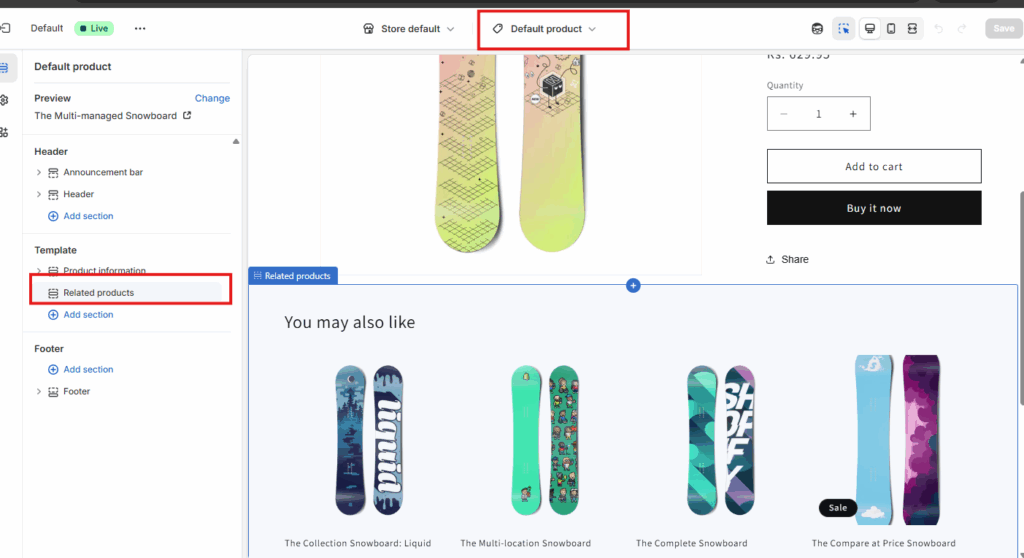
4. Customize heading (e.g., “You May Also Like” or “Recommended for You”).
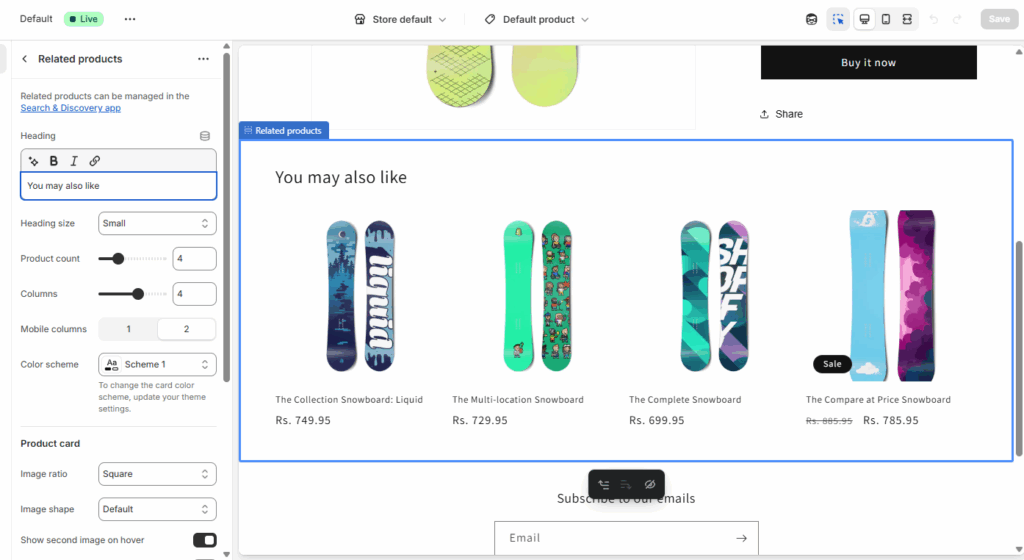
5. Save changes.
How to Use It Strategically:
- Use above the review section or below product details, avoid interrupting the buying decision.
- Use Shopify Analytics to evaluate which recommendations convert best.
- Keep visuals large and mobile-optimized, avoid cluttered rows.
4. Abandoned Cart Recovery
Abandoned Cart Recovery is another built-in feature that automatically sends email reminders to customers who left items in their cart without completing checkout. Shopify triggers these emails based on your store’s settings and timing preferences. You can also customize email content to match your brand tone.
Statista reports that mobile cart abandonment rates exceed 85% largely due to distractions, slow load times, or unexpected costs during checkout. Automated recovery emails act as a second chance to close the sale, more effective if combined with urgency (limited stock) or incentives (discount codes). They’re one of the highest-ROI retention tools available in Shopify.
How to Enable:
1. Go to Settings > Notifications.
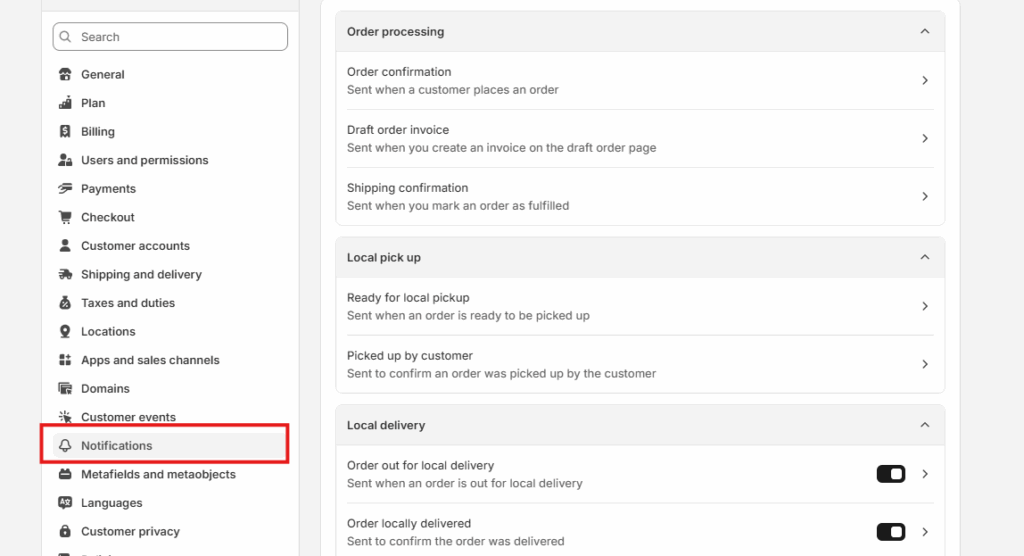
2. Scroll to Abandoned Checkout Emails.
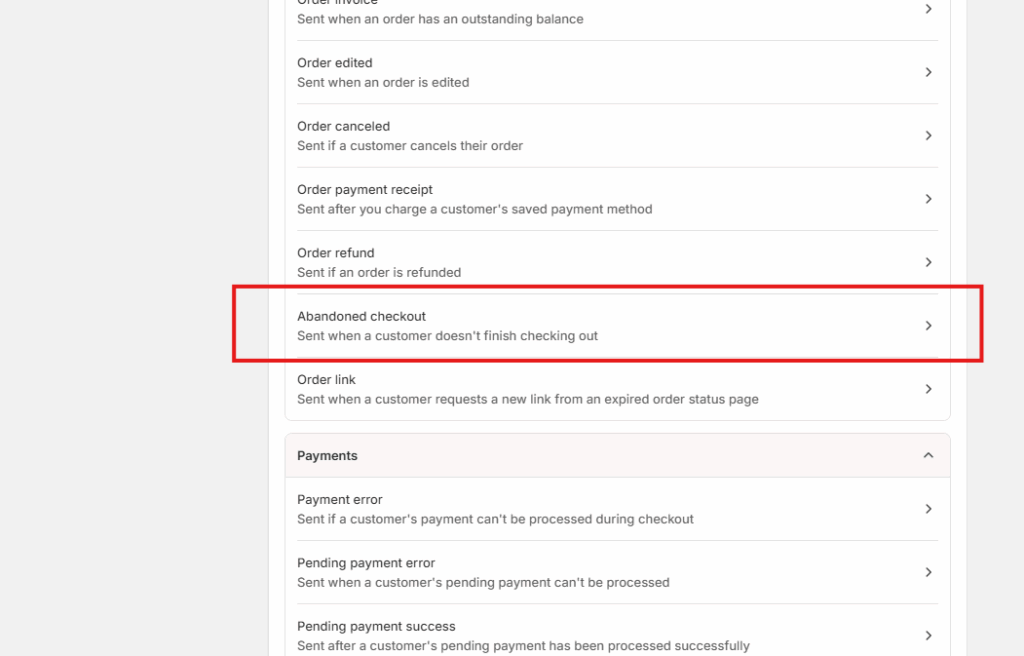
3. Enable “Send automatic emails” and set delay timing (1, 6, or 10 hours).
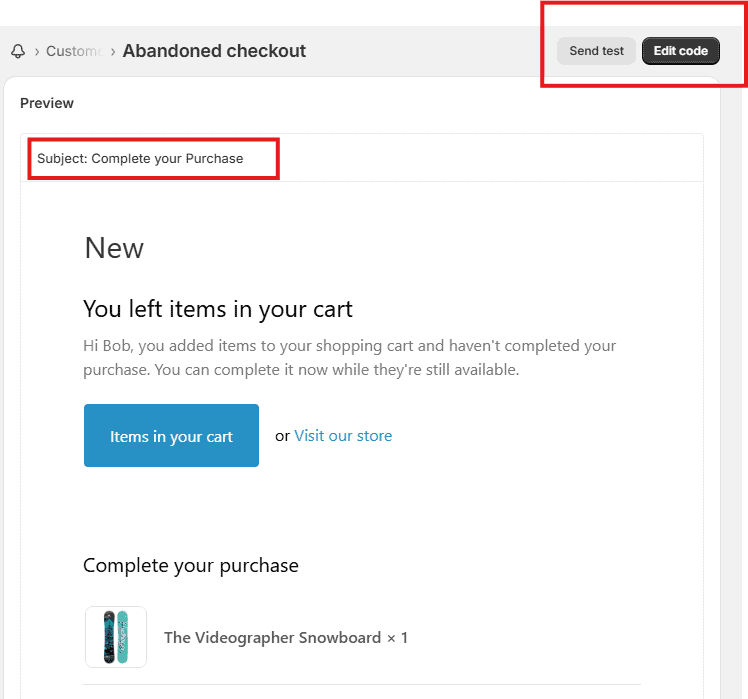
4. Edit email content if desired.
How to Use It Strategically:
- Use personalized language: include product names, images, and pricing.
- Subject lines should be short, emotional, or benefit-driven (e.g., “Still thinking it over?” or “Your cart’s about to expire”).
- Add urgency: use timers, “Limited stock” phrases, or a one-time-use discount.
5. Discount Engine
Shopify’s discount engine lets you create percentage, fixed amount, BOGO (Buy one get one), or free shipping offers that apply at checkout. You can set conditions by product, customer group, minimum spend, or usage limits. It also integrates with automatic discounts for real-time application.
Google studies show that 64% of mobile shoppers look for discounts before completing a purchase. By integrating offers directly into the checkout flow, you reduce drop-offs and increase perceived value, without needing to rely on third-party tools or popups.
How to Use It:
1. Go to Discounts > Create Discount.
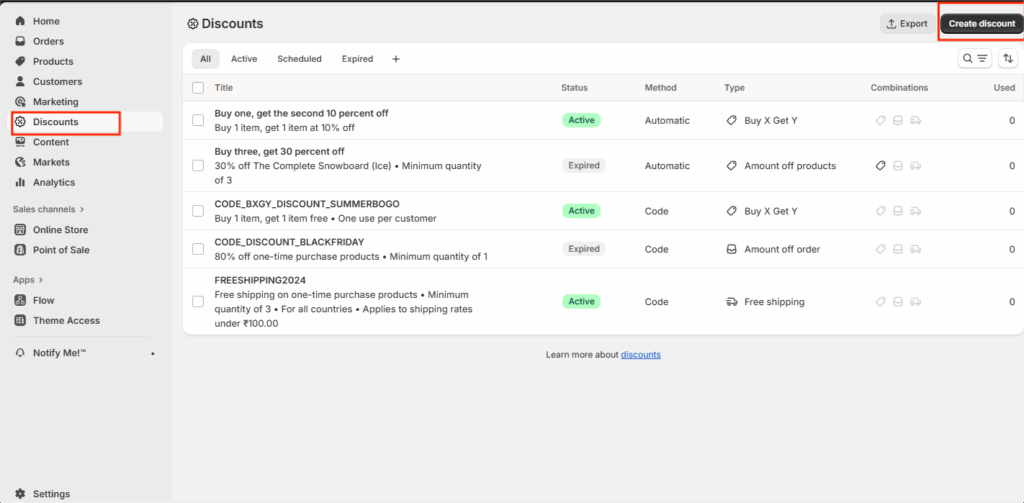
2. Choose between Discount Code or Automatic Discount.
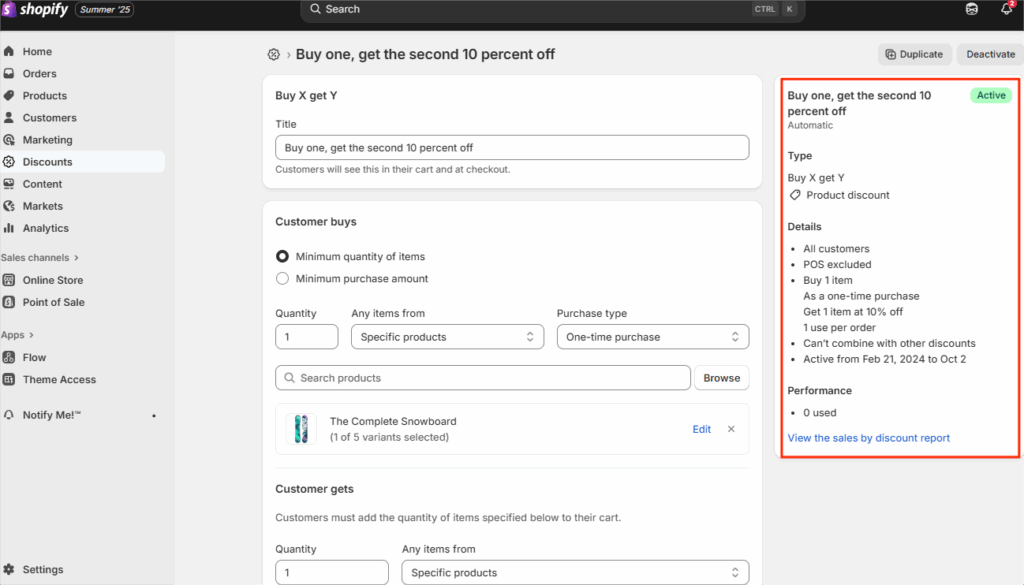
3. Select type: Percentage, Fixed Amount, Free Shipping, or Buy X Get Y.
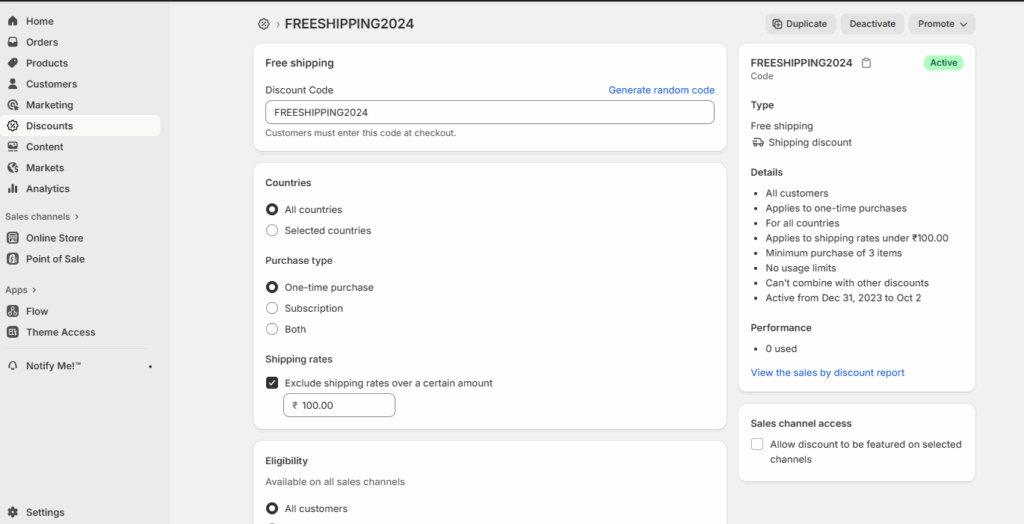
4. Set conditions (minimum spend, product-specific, customer segment).
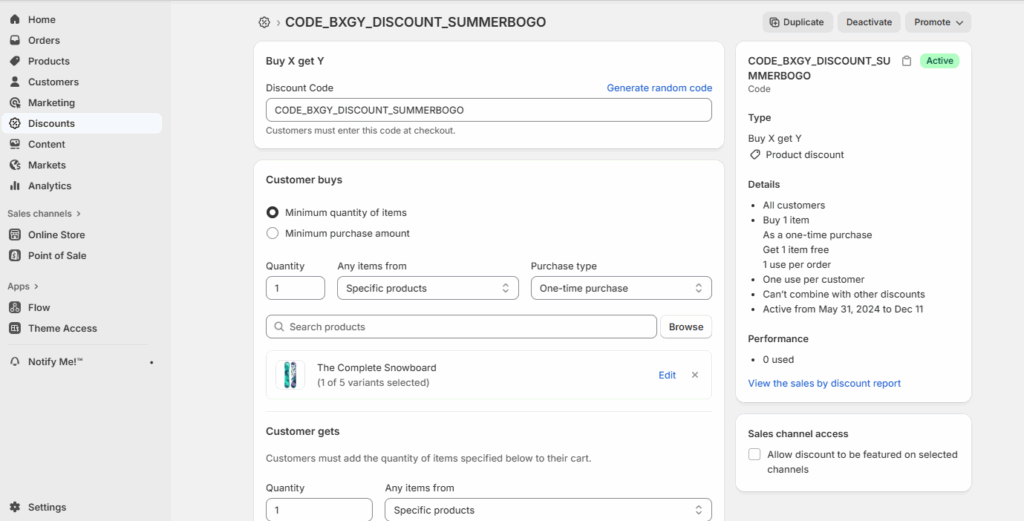
5. Save and test.
How to Use It Strategically:
- Announce mobile-friendly promotions with sticky bars or cart pop-ups.
- Highlight discounts with color contrast and urgent messaging.
- Use auto-applied discounts on mobile to reduce friction, no code typing.
6. Shopify Markets (for Global Selling)
Shopify Markets is a centralized dashboard that helps you localize your store for international audiences. It allows you to control currency, pricing, languages, duties, domains, and regional content, all from a single interface. It’s built to scale global commerce without third-party localization tools.
According to Shopify, localizing currency and language can boost conversions by 40%. Mobile buyers in global markets are more likely to trust and convert on stores that feel native. Shopify Markets makes this seamless without code or complex integrations.
How to Enable:
1. Go to Settings > Markets.
2. Click Add Market to define a new region (e.g., Europe, Canada).
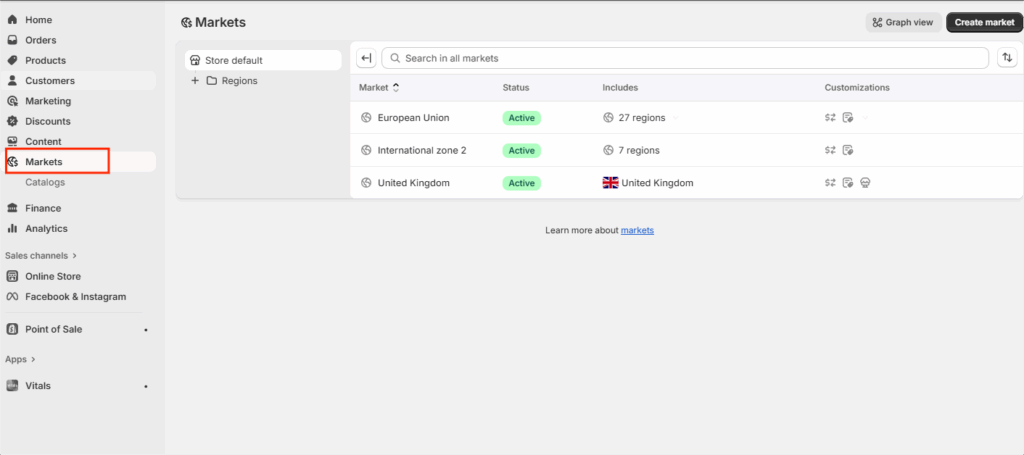
2. Enable local currencies, languages, and checkout rules.
3. Connect region-specific domains or subfolders (optional).
4. Activate automatic country detection (via Shopify’s Geolocation tool).
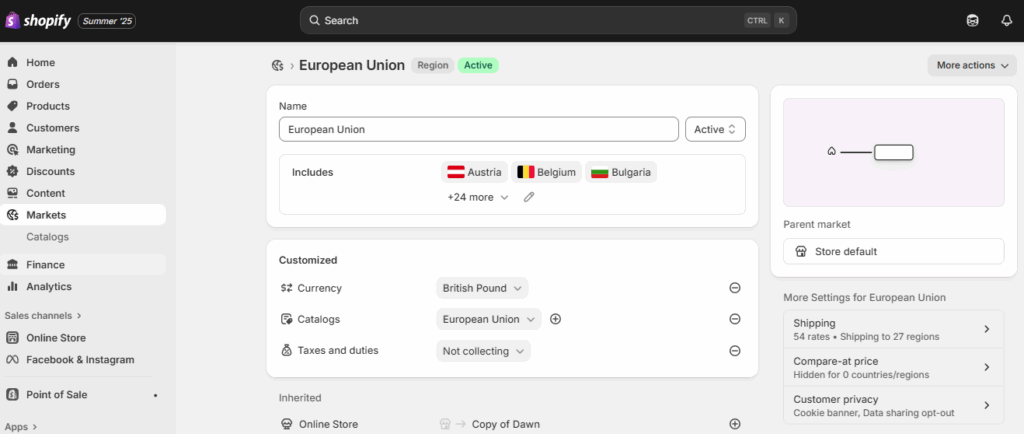
How to Use It Strategically:
- Offer localized shipping and pricing to improve conversion trust.
- Use auto-redirect based on IP for better mobile UX.
- Run market-specific discounts or bundles by region.
7. Product Reviews
Shopify’s free Product Reviews app lets you collect and display customer feedback and star ratings directly on product pages. You can moderate submissions, add schema for SEO, and control the layout based on your theme. It supports photo reviews as well.
According to Power Reviews, 93% of customers read reviews before buying. Mobile shoppers especially rely on trust signals like ratings and testimonials when they can’t physically assess a product. Displaying reviews builds credibility and supports faster decisions.
How to Enable:
- Go to Apps > Shopify App Store.
- Search for and install “Product Reviews” by Shopify.
- Follow instructions to embed reviews into your theme (may require Liquid code or app blocks).
- Customize visibility: product pages, collection grids, homepage, etc.
How to Use It Strategically:
- Display average star ratings right under product titles.
- Sort by most helpful or most recent for relevance.
- Use reviews in social proof carousels or home banners.
8. Back in Stock Alerts
This feature enables shoppers to opt in for email or SMS alerts when an out-of-stock product becomes available again. While not enabled by default, it can be implemented through Shopify Flow.
Research found that 15–20% of customers will return to purchase if notified promptly. On mobile, where impulse buys are common, back-in-stock alerts convert lost intent into recovered sales, especially for viral or limited inventory items.
How to Enable:
- For Shopify Plus: Use Shopify Flow to create a restock notification workflow.
- For all plans: Use Shopify Email to send alerts manually or via integration.
- Add an opt-in form on product pages using theme customization or metafields.
How to Use It Strategically:
- Offer both email and SMS signup options for broader reach.
- Include product image, price, and urgency copy in the notification.
- Combine restock alerts with limited-time relaunch discounts.
9. Estimated Delivery Dates
Shopify allows merchants to display estimated delivery windows based on their shipping settings. You can show expected arrival dates on product or checkout pages using theme customizations or metafields tied to shipping zones.
Research shows that lack of shipping transparency is a top reason for checkout abandonment. On mobile, showing a clear delivery estimate reduces uncertainty and improves confidence, especially when buyers are gifting or time sensitive.
How to Enable:
- Go to Settings > Shipping and Delivery.
- Under Shipping Profiles, choose or create a profile.
- Define shipping methods and estimated delivery windows.
- Use theme customization or metafields to surface delivery dates on product pages.
How to Use It Strategically:
- Add estimated delivery below the price or Add to Cart button.
- Use simple, mobile-friendly language: “Delivered by Tuesday, Aug 12.”
- Combine with “Fast Shipping” badges or icons.
10. Shopify Payments
Shopify Payments is the platform’s built-in payment processor that lets you accept all major credit cards, Apple Pay, Google Pay, and Shop Pay natively. There’s no need to connect a third-party gateway, and payouts are managed directly within your Shopify admin.
Redirects and loading delays are common drop-off points in mobile checkouts. Shopify Payments ensures that the entire purchase experience stays within your store, making it faster, safer, and more reliable across all devices.
How to Enable:
- Go to Settings > Payments.
- Click “Activate Shopify Payments.”
- Fill out your business and banking information.
- Enable any available wallets (e.g., Apple Pay, Google Pay).
- Save your changes.
How to Use It Strategically:
- Feature wallet logos on product and cart pages to signal trust.
- Pair with express checkout banners on mobile for one-tap conversion.
- For high-AOV items, offer Shop Pay Installments (where supported).
Conclusion
Shopify offers an impressive suite of built-in tools designed to reduce mobile friction, improve personalization, and increase checkout speed. But activating features alone isn’t enough, getting measurable results means aligning them with your store’s design, customer behavior, and conversion goals.
That’s where custom Shopify development makes the difference. At Samarpan Infotech our Shopify developers specialize in turning out-of-the-box features into high-performing mobile experiences, through smart theme customization, UX enhancements, and automation strategies built for growth.
I'm currently a WordPress & Shopify developer at Samarpan Infotech, I'm passionate about web development. Beyond coding, I have a curious mind for world affairs and geopolitics, while also enjoying the occasional chess match in my spare time.