How to Start Selling on WordPress Using Shopify Plugin


Shopify offers a plugin that lets you “sell on WordPress” combining WordPress’ content capabilities with Shopify’s checkout, security, and commerce backend.
Content Overview
In this Blog, you’ll learn why you might use Shopify + WordPress, how it works, and a step-by-step setup.
Why Use Shopify on WordPress?
- Better checkout & sales conversion – Shopify’s checkout is proven to convert better than many typical WordPress eCommerce solutions.
- Security, PCI compliance, fraud protection – Shopify handles encryption, PCI, and fraud safeguards.
- Simplified store management – Manage inventory, orders, analytics via Shopify dashboard, not multiple plugins.
- Fast setup, minimal coding – Embed products or collections into WordPress with simple clicks.
- Reliable uptime & scalability – Shopify’s infrastructure ensures stability even under high traffic.
Step-by-Step Setup Guide
1. Shopify Side Steps
- Log in to your Shopify store.
- Go to the Shopify App Store and install “Sell on WordPress by Shopify.” (In our case, it’s already installed.)
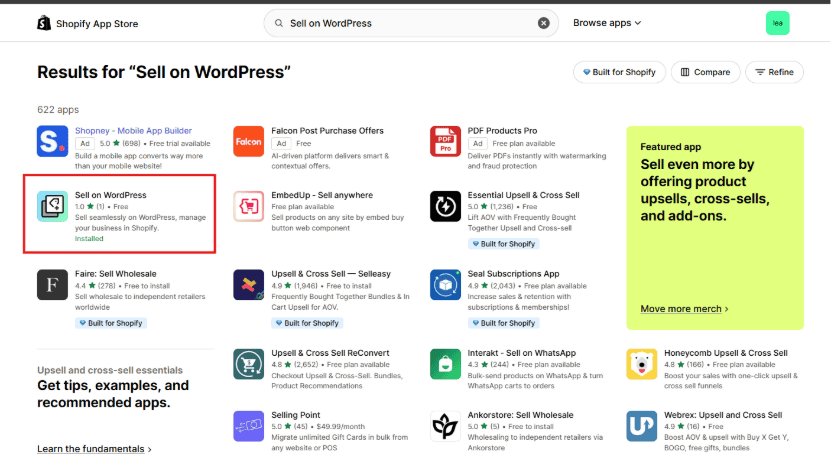
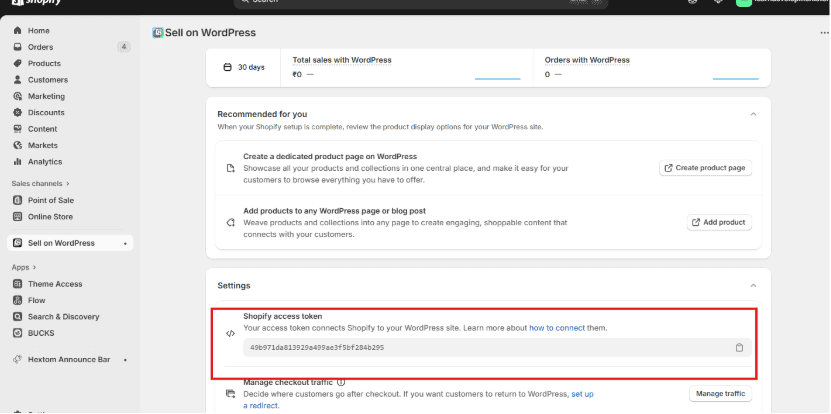
- In your Shopify Dashboard, open the left sidebar and click on the Sell on WordPress app.
- Go to the Settings tab and copy your Shopify Access Token.
2. WordPress Side Steps
- Visit the official Sell on WordPress by Shopify page and download the WordPress plugin. The plugin will be downloaded as a .zip file.
- Log in to your WordPress Admin Dashboard.
- Go to Plugins → Add New → Upload Plugin.
- Upload the Sell on WordPress plugin (.zip) file, then install and activate it.
- Once activated, you’ll see Shopify appear in your WordPress sidebar. Click to open it.
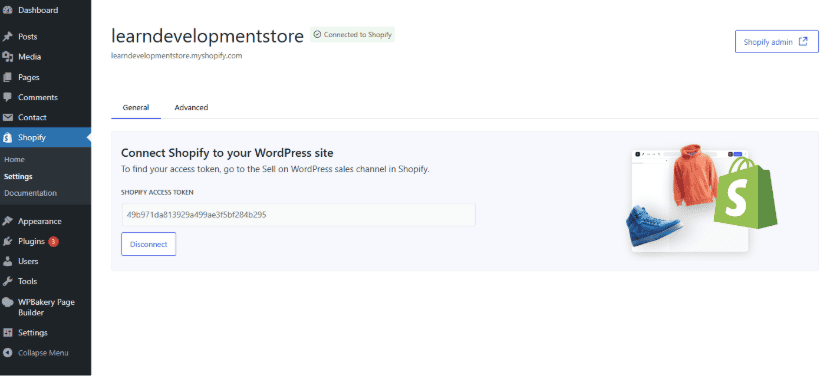
- Paste the Shopify Access Token (copied earlier) into the field provided, as shown in the image below.
- After pasting, click Connect to link your WordPress site with your Shopify store.
3. Adding Products or Collections
- Create a new WordPress page.
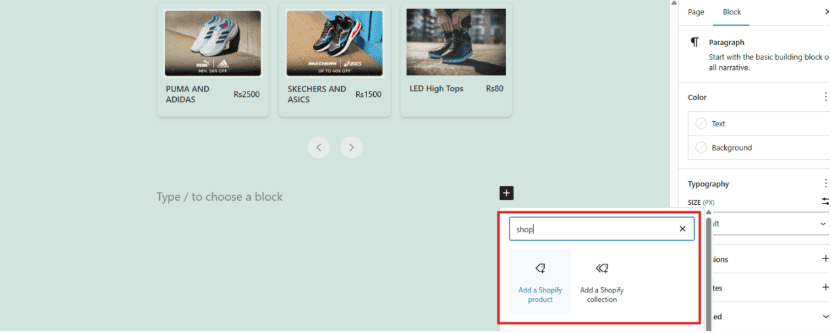
- Click Add Block → Shopify Product or Shopify Collection.
- Select the products or collections you want to display.
Example: Collections for Shoes, Men, and Women. - Save and publish the page.
4. Frontend View (Website Preview)
- On your website, you’ll see the Women’s Collection section.
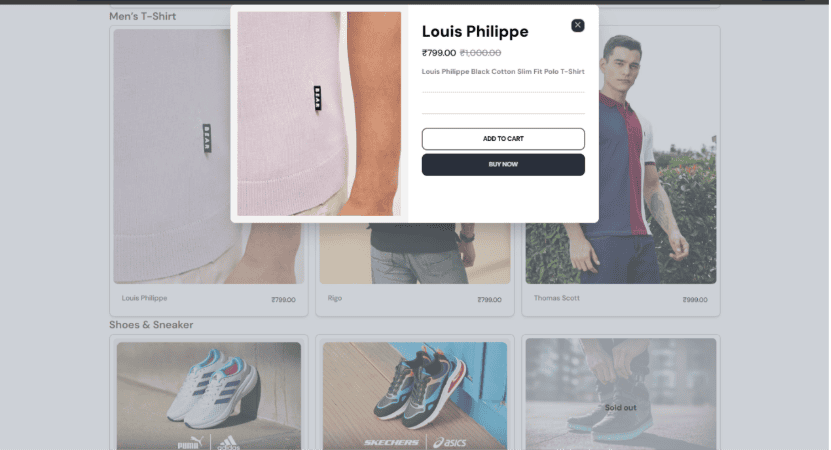
- When you hover over any product, a plus (+) icon appears on the right side — this is the Quick Shop option.
Women Collection:

Men and Shoes Collection:

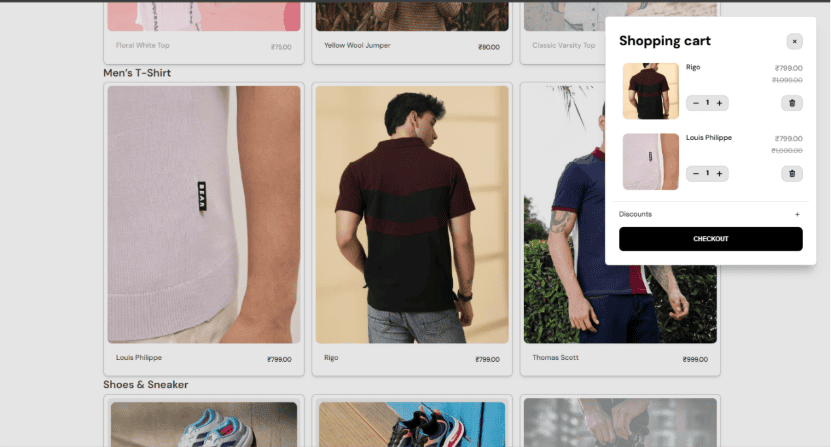
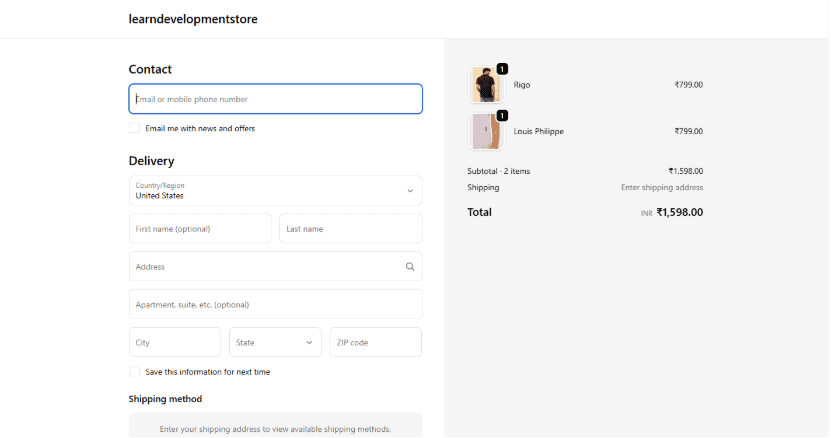
- Clicking Checkout will redirect users to your Shopify Store’s secure checkout page.
Developer Perspective: Why Use “Sell on WordPress by Shopify”
From a developer’s point of view, the Sell on WordPress plugin by Shopify provides an efficient solution for combining content-driven WordPress sites with Shopify’s eCommerce infrastructure.
If you primarily use WordPress site for static content or blogging, and maintain a Shopify store for product management, this integration offers the perfect balance. It allows you to leverage WordPress’s flexible CMS features such as blogs, SEO optimization, and custom page templates, while utilizing Shopify’s robust product management, cart, checkout, shipping, and payment gateway.
This integration eliminates the need for WooCommerce or other heavy eCommerce plugins on the WordPress side, reducing maintenance complexity and potential plugin conflicts. Developers can seamlessly embed Shopify products or collections into WordPress pages using lightweight blocks or shortcodes, maintaining performance and design consistency.
In short, it enables teams to use both platforms for their strengths, WordPress for content and user engagement, and Shopify for secure, scalable online sales, resulting in a faster, cleaner, and more maintainable hybrid eCommerce solution.
Conclusion
By following these steps, you can easily connect your Shopify store with your WordPress website and start selling products directly through your site. The Sell on WordPress by Shopify makes it simple to showcase your collections, manage inventory, and process secure payments all while keeping the flexibility and design freedom of WordPress.
Once connected, you’ll have a fully functional eCommerce experience that combines Shopify’s reliability with WordPress’s powerful content management system, helping you reach more customers and grow your business effortlessly.
Samarpan Infotech offers custom Shopify development services, including store setup, theme integration, app configuration, and performance optimization to ensure a seamless eCommerce experience.
I'm currently a WordPress & Shopify developer at Samarpan Infotech, I'm passionate about web development. Beyond coding, I have a curious mind for world affairs and geopolitics, while also enjoying the occasional chess match in my spare time.