How to Build a Custom Video Section on Shopify with Custom Coding!


Videos are one of the most engaging forms of content, helping brands showcase their products, tell their stories, and enhance customer experience. If you’re running a Shopify store, adding a custom video section can make your site more dynamic and interactive. Instead of relying on third-party apps, you can create a custom video section using Liquid, Shopify’s templating language.
In this guide, we will create a Custom Video Section for a Shopify store using Liquid and Schema settings. This section will allow store owners to add a video from the Shopify media library and customize its behavior through various settings, including autoplay, loop, mute, and more.
In this article, we’ll explore how to build a custom video section on shopify store using custom coding.
Step 1: Creating the custom-video-section.liquid File
Videos are one of the most engaging forms of content, helping brands showcase their products, tell their stories, and enhance customer experience. If you’re running a Shopify store, adding a custom video section can make your site more dynamic and interactive. Instead of relying on third-party apps, you can create a custom video section using Liquid, Shopify’s templating language.
To create a custom video section, follow these steps:
- Log in to your Shopify admin panel.
- Go to Online Store > Themes.
- Click Actions > Edit Code.
- Under Sections, click Add a new section.
- Name the file custom-video-section and click Create section.
- Copy and paste the following code into the newly created file.
{% schema %}
{
  "name": "Video Section",
  "settings": [
    {
      "type": "inline_richtext",
      "id": "custom_video_heading",
      "label": "Heading"
    },
    {
      "type": "video",
      "id": "custom_video_section",
      "label": "Video"
    },
    {
      "type": "checkbox",
      "id": "video_full_width",
      "label": "Show Video Full Width",
      "default": false
    },
    {
      "type": "checkbox",
      "id": "video_autoplay_custom",
      "label": "Auto Play Video",
      "default": false
    },
    {
      "type": "checkbox",
      "id": "video_muted_custom",
      "label": "Enable Mute Video",
      "default": false
    },
    {
      "type": "checkbox",
      "id": "video_controls_custom",
      "label": "Video Controls",
      "default": false
    },
    {
      "type": "checkbox",
      "id": "video_looping_custom",
      "label": "Play Video on Loop",
      "default": false
    },
    {
      "type": "range",
      "id": "padding_top",
      "label": "Top Padding",
      "default": 10,
      "min": 0,
      "max": 100,
      "unit": "px"
    },
    {
      "type": "range",
      "id": "padding_bottom",
      "label": "Bottom Padding",
      "default": 10,
      "min": 0,
      "max": 100,
      "unit": "px"
    }
  ],
  "presets": [
    {
      "name": "Video Section",
      "category": "Media"
    }
  ]
}
{% endschema %}
{%- capture sizes -%}
  {% if section.settings.video_full_width %}
    100vw
  {% else %}
    (min-width: {{ settings.page_width }}px) {{ settings.page_width | minus: 100 }}px,
    (min-width: 750px) calc(100vw - 10rem), 100vw
  {% endif %}
{%- endcapture -%}

<div class="custom-video-section
{
% if section.settings.video_full_width %} custom-video-section--full-width{% endif %
}"
     style="padding-top: {{ section.settings.padding_top }}px; padding-bottom: {{ section.settings.padding_bottom }}px;">
  <div
      {% if section.settings.video_full_width %}
        class="page-width"
      {% endif %}
    >
      {%- unless section.settings.custom_video_heading == blank -%}
        <div class="custom-video-heading title-wrapper title-wrapper--no-top-margin{% if settings.animations_reveal_on_scroll %}
scroll-trigger animate--slide-in
{% endif %}">
          <h2 class="title inline-richtext
{{ section.settings.heading_size }}">{{ section.settings.custom_video_heading }}</h2>
        </div>
      {%- endunless -%}
    </div>
  <div class="video-section
{% if section.settings.video_full_width %} video-section--full-width{% endif %}">
    {{
section.settings.custom_video_section | media_tag: autoplay: section.settings.video_autoplay_custom, muted:
section.settings.video_muted_custom, controls: section.settings.video_controls_custom, loop:
section.settings.video_looping_custom }}
  </div>
</div>
<script>
  function playVideo() {
    var video = document.querySelector(".custom-video-section video");
    if (video) {
      if (video.paused) {
        video.play();
      } else {
        video.pause();
      }
    }
  }
</script>
Step 2: Understanding the Schema Fields
Below is an explanation of each field in the schema:
- inline_richtext (custom_video_heading) – Allows the user to add a title above the video.
- video (custom_video_section) – Lets the user select a video from the Shopify media library.
- checkbox (video_full_width) – Determines whether the video should be displayed at full width.
- checkbox (video_autoplay_custom) – Enables autoplay for the video.
- checkbox (video_muted_custom) – Allows muting the video.
- checkbox (video_controls_custom) – Adds play, pause, and volume controls.
- checkbox (video_looping_custom) – Makes the video play in a continuous loop.
- range (padding_top) – Adjusts the top padding of the section (0-100px).
- range (padding_bottom) – Adjusts the bottom padding of the section (0-100px).
Step 3: Adding the Section to Your Theme
To add the newly created video section to your theme:
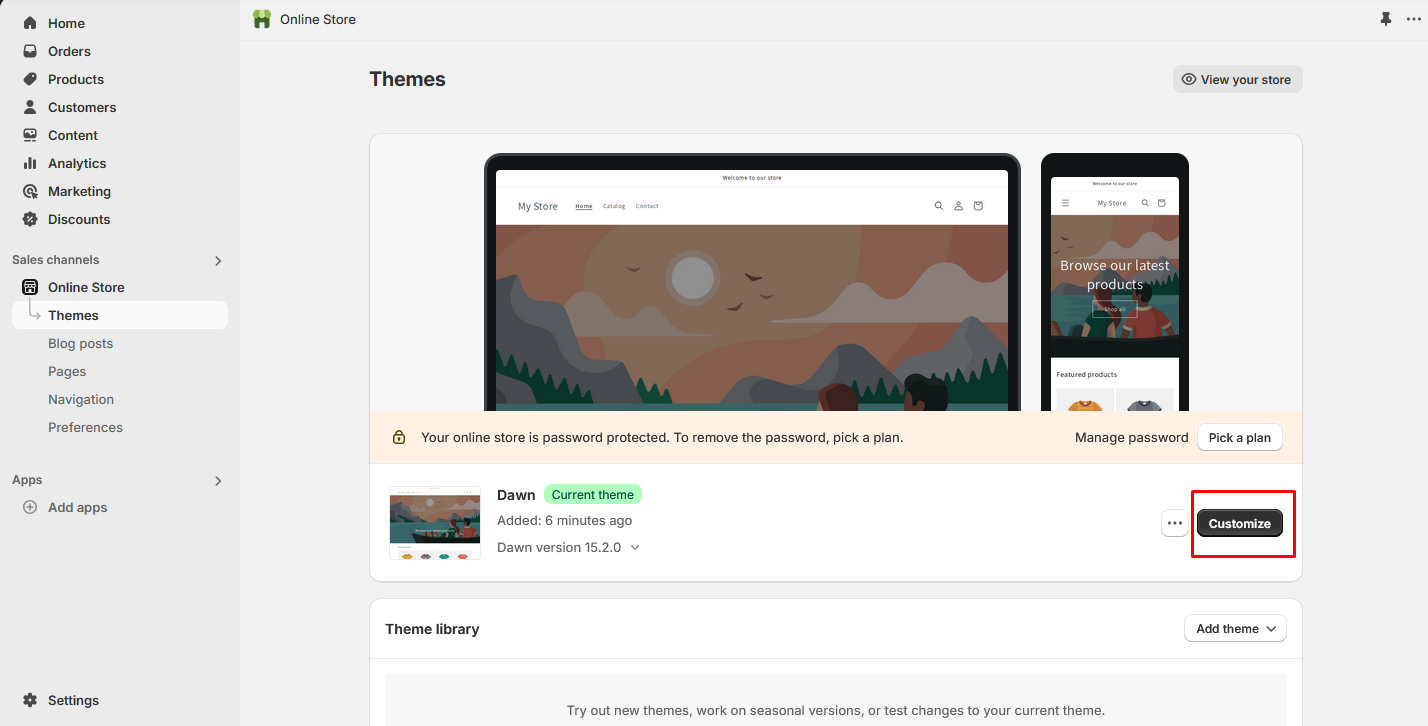
1. Open Online Store > Themes.Click Customize.
2. Click Customize.
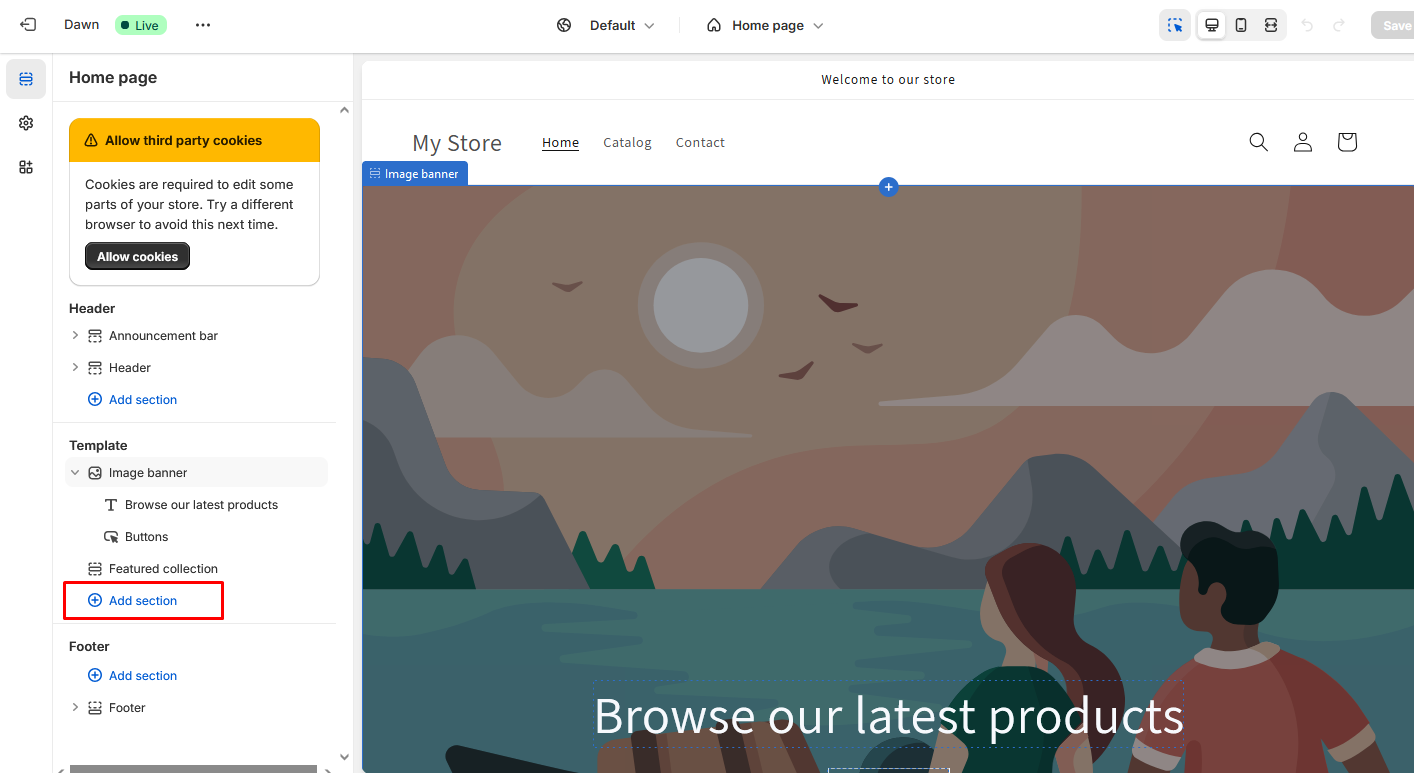
3. Click Add Section.
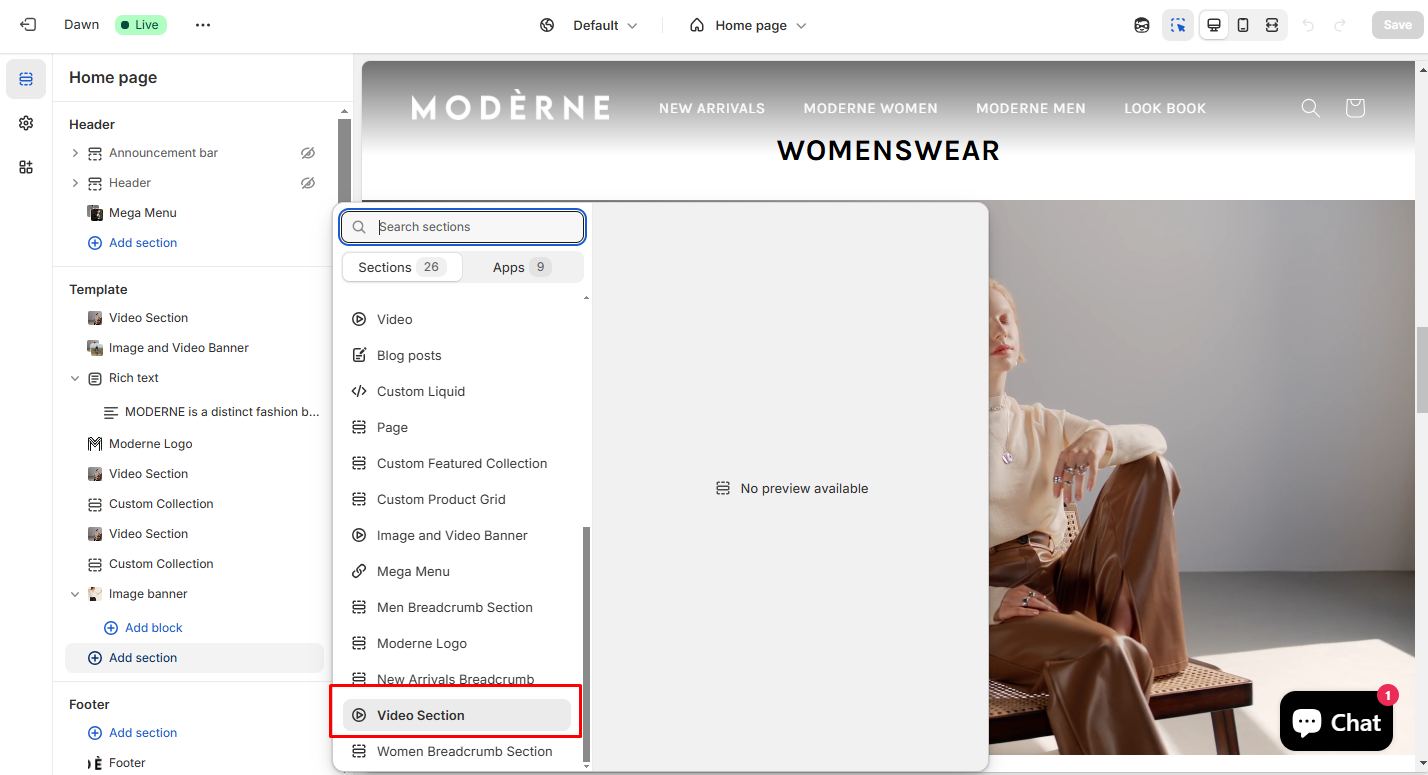
4. Look for “Video Section”.
5. Select it to customize the content directly in the theme editor.
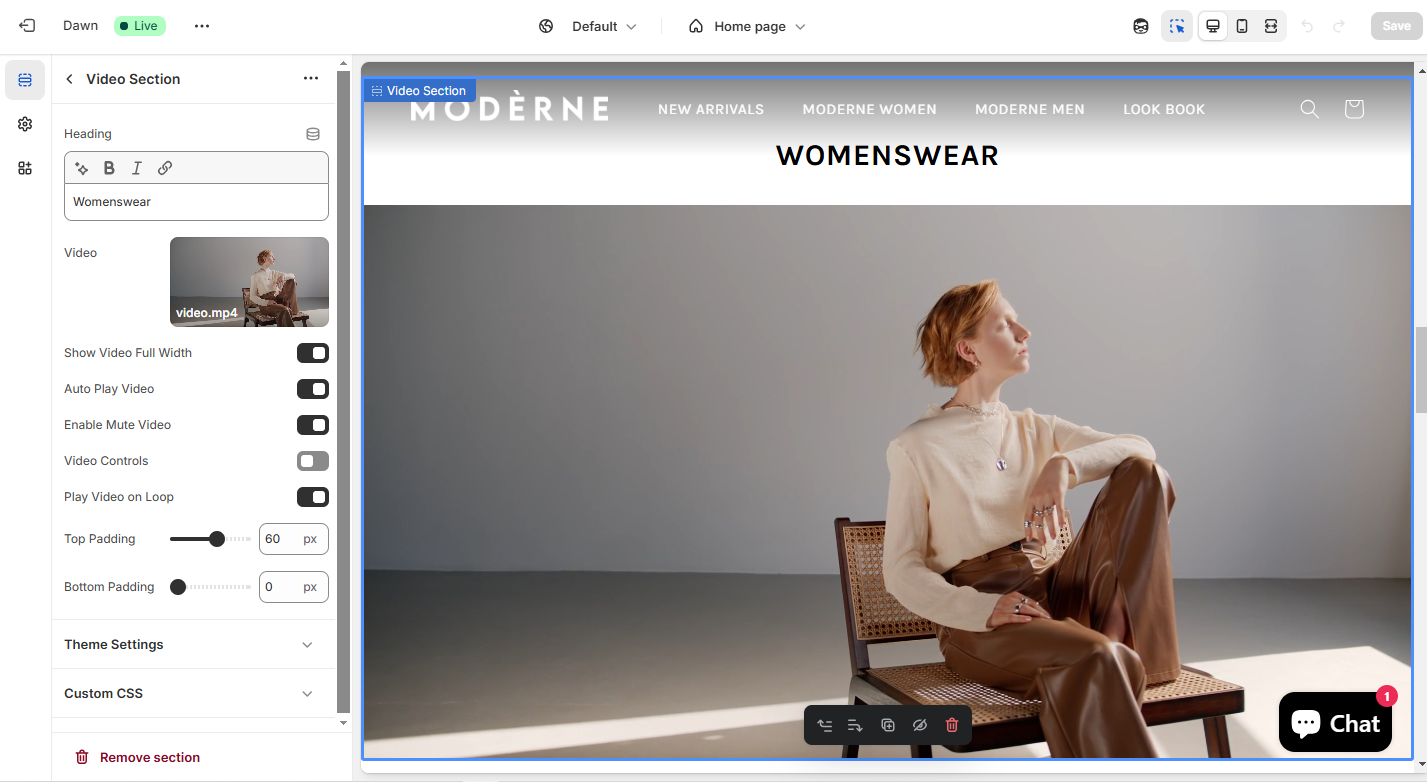
6. After making changes, click Save, then refresh your website to see your new dynamic section in action.
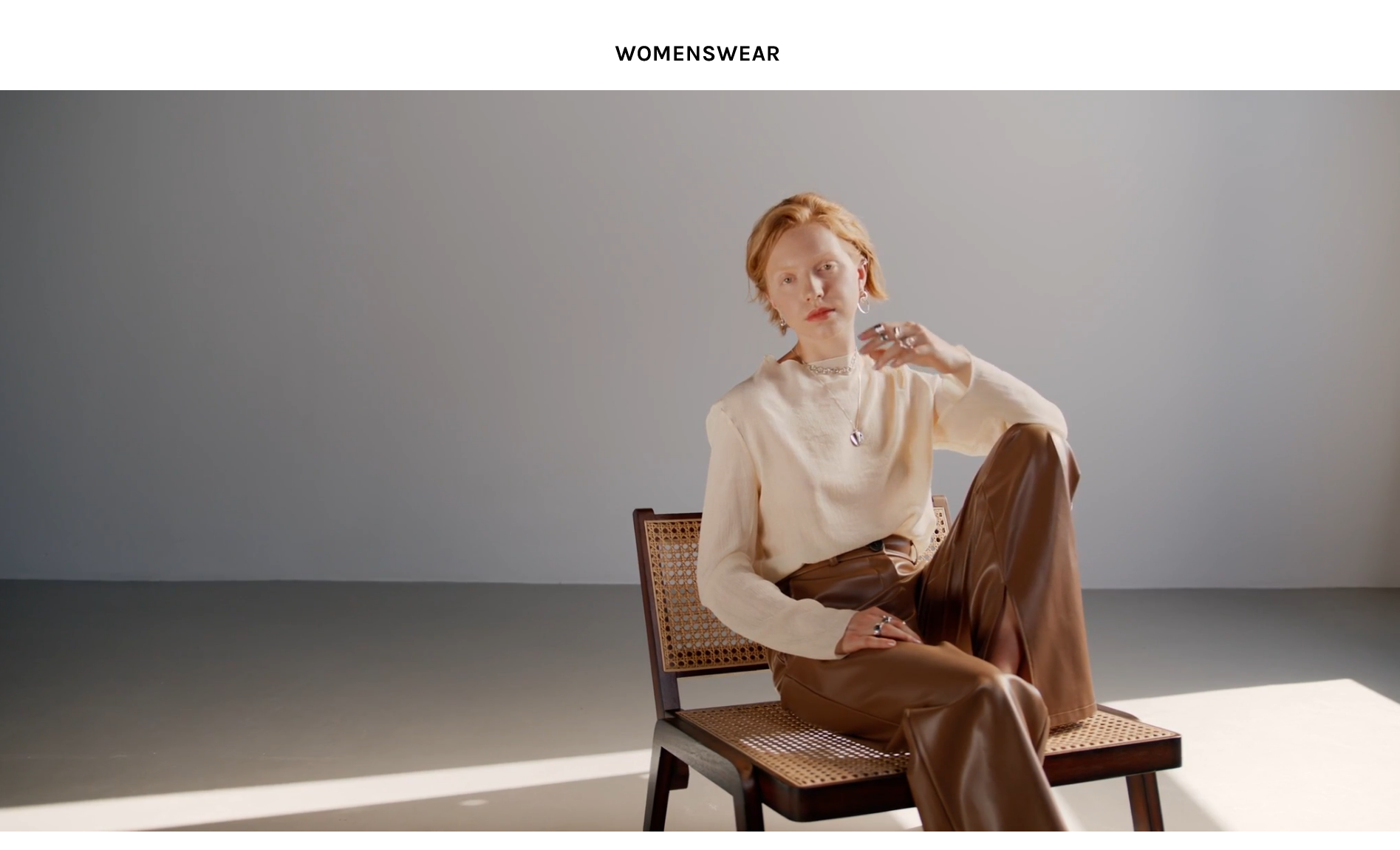
Here is the final output of your custom video section.
“In this tutorial, we learned How to Build a Custom Video Section on Shopify with Custom Coding!”
I am working as a WordPress & Squarespace Developer at Samarpan Infotech, My expertise encompasses a wide range of skills, theme customization, plugin integration, API Integration. I strongly believe in the motto, "Success is not the key to happiness, happiness is the key to success; if you love what you are doing, you will be successful.